 Sunplug
Sign in
Sunplug
Sign in
Setup guides → Sunplug Agent
Sunplug Agent
A small program that runs on your own network and reads your equipment directly, every thirty seconds.
Why bother
Cloud APIs cannot be fresher than the inverter's own upload schedule, and for most brands that is five to fifteen minutes. The Sunplug Agent asks the hardware directly every 30 seconds, no credentials for your equipment leaving your house.
What it works with
Enphase, Fronius, SolarEdge, SolaX, Sungrow, GoodWe, LuxPower, APsystems, SMA, KOSTAL, Hoymiles, OpenDTU, Victron, and Shelly meters.
On a Raspberry Pi
A Raspberry Pi on your network, set up from your phone. Nothing exposed.
You need: A Raspberry Pi 3, Pi 4, Pi 5 or Pi Zero 2 W and a 16 GB or bigger microSD card.
Writing the card
1. Install Raspberry Pi Imager
It is free, from the Raspberry Pi Foundation, and runs on Windows, macOS and Linux. Download it from raspberrypi.com.
2. Add the Sunplug repository
Sunplug's images are not in Imager's built-in list. Instead Imager can be pointed at anyone else's list, which is what we publish. In Imager: App options (bottom left) → Content Repository → Edit → Use custom URL, and set it to:
https://dl.sunplug.app/pi/os_list.json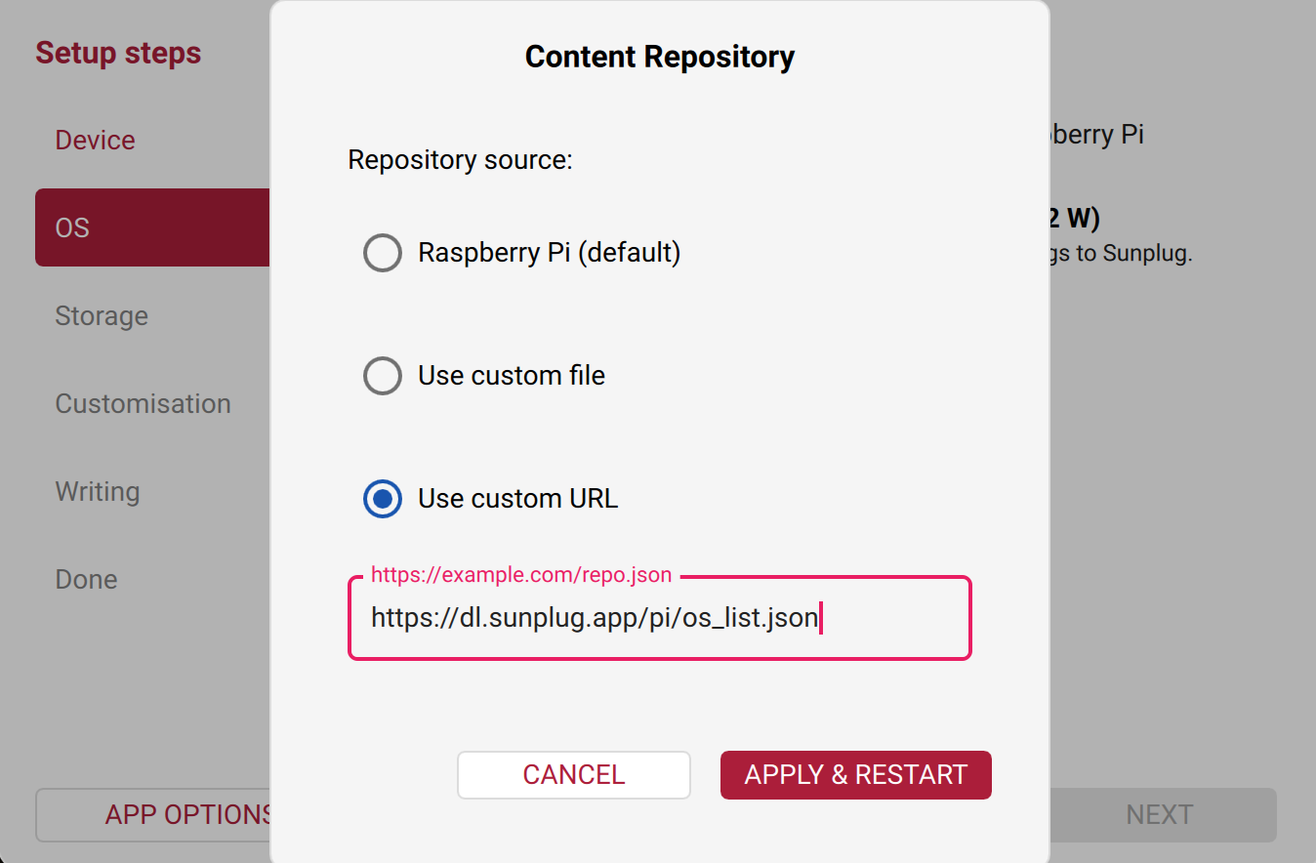
3. Choose the board, the image, and the card
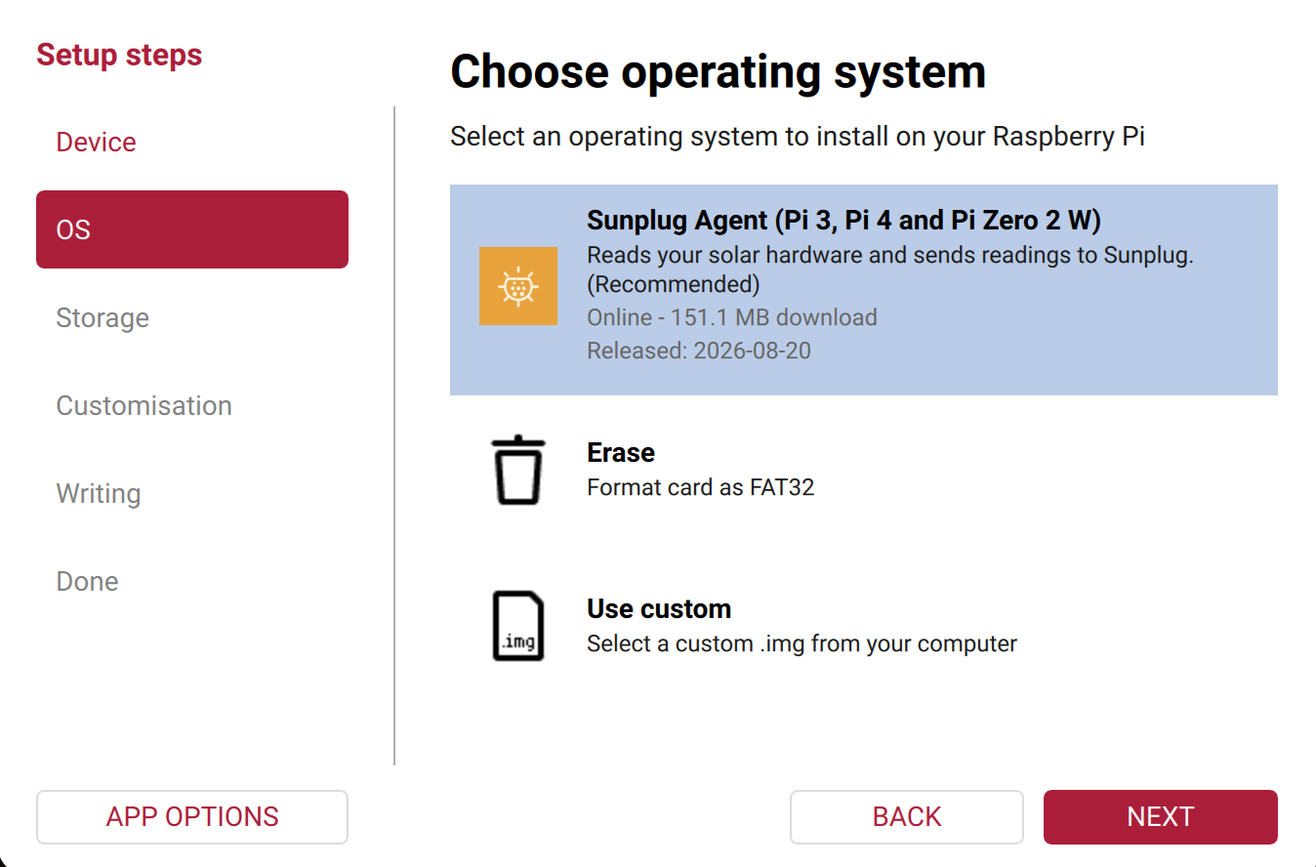
Pick your Pi model first, then Sunplug Agent from the operating system list, then your microSD card. Imager will warn you that everything on the card will be erased, which is true.
4. Write it, and put it in the Pi
Writing and verifying takes a few minutes. Then eject the card, put it in the Pi, and power it on.
What happens on first boot
The first boot takes a minute or two longer than later ones, because the filesystem grows to fill whatever card you used — on a 32 GB card that leaves about 28 GB free, which is far more than the agent will ever need and simply means you will not run out.
Then the agent starts, joins your network, and begins looking for solar hardware. It also announces itself on the network so your browser and the Sunplug app can find it by name.
Opening its setup page
On any machine on the same network:
http://sunplug.local:8787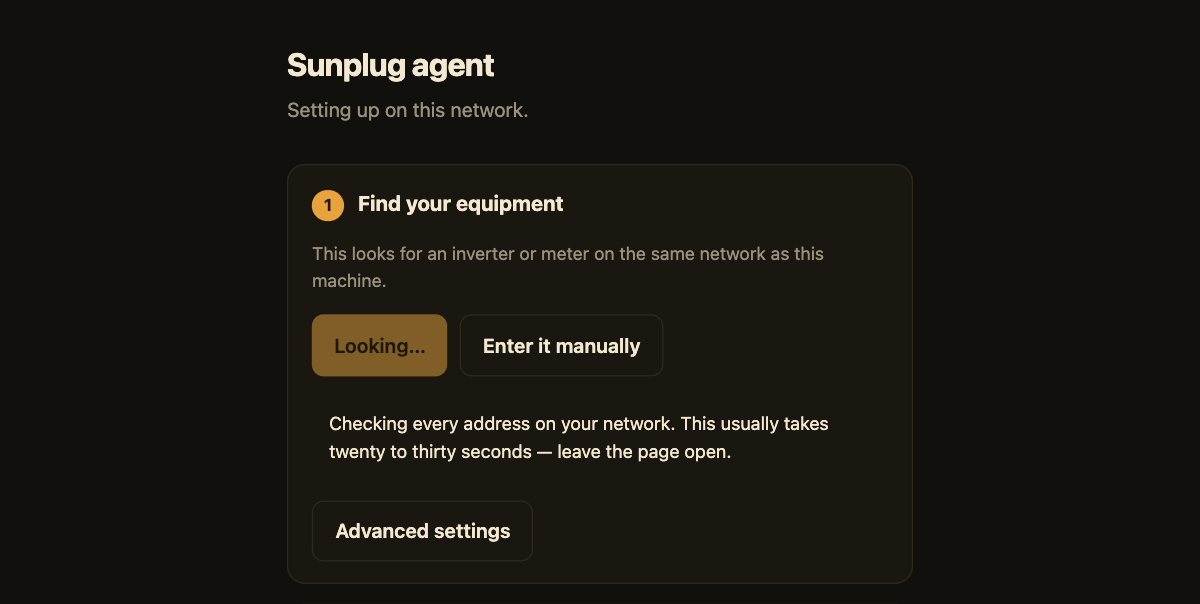
Finding your equipment and pairing then work as on Docker — see pairing.
If that address does not work
Two ordinary reasons. The name is announced over mDNS, which some networks —
a few corporate Wi-Fi setups, and the occasional guest network — do not pass
on; and the name is not unique, so if you already have a Sunplug box in the
house, sunplug.local may answer as the older one rather than
the Pi you have just written.
In either case, find the Pi's address in your router's list of connected
devices and use that instead — http://<ip-address>:8787,
with whatever your router shows. One Pi in a house is the normal case and
the name will simply work; two is when it is worth knowing this paragraph
exists.
What is deliberately missing
This image is an appliance, and most of what it lacks is the point of it.
- No SSH server. Nothing is listening for a remote login, because there is no login to make.
- No user account. There is no password to choose, leave at a default, or reuse from somewhere else.
- No
sudo. Not merely no password for it — the program is not on the image.
A box that sits permanently on your home network reading your solar equipment is exactly the kind of thing that gets forgotten and left unpatched for three years. The cheapest way to make that safe is to give it no way in.
It patches itself, too — security updates install unattended, without asking you and without needing you to remember.
Stuck? Email me.